Crops
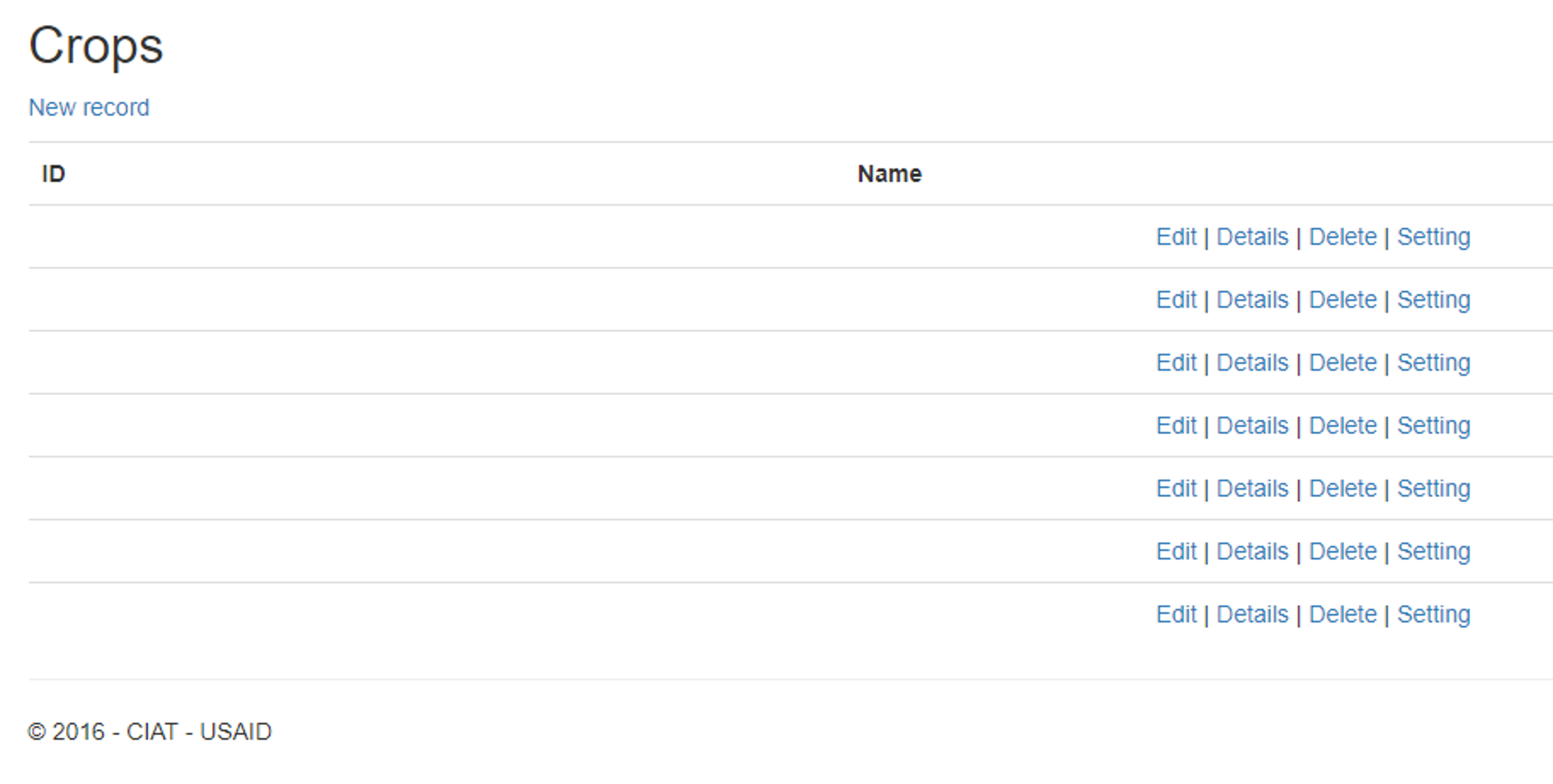
Within the Production module is the Crops, which allows to manage the crops of the application.
What does this module allow you to do?
The Crops module allows you to create new crops, edit, view details and delete
Note
To delete data in this module it must be logical deletion. (Logical deletions are those where the result is never actually deleted)
How to access to the crops module?
To access to the crops module, you must go to the top menu and select the Production option and in the submenu that is displayed you must select Crops.

Functionalities
Create crops
To create crops you must select below the title Crops, the option New record.

You must complete all the fields
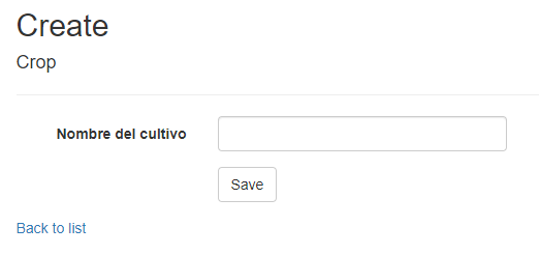
To finish you must press the Save button
Required fields
Field |
Description |
|---|---|
Crop name |
is the name of the crop. |
Edit crops
To edit crops you must select in the last column, the option Edit.

A new view will be displayed, where you can edit the crop fields.

To finish you must press the Save button.
Crop details
To view crop details you must select in the last column, the option Details.

A new view will appear, in which you can view the crop details.

Delete crops
To delete one crop you must select in the last column, the option Delete.

A new view will appear, in which you can delete the crop.

To finish you must press the Delete button
Configure crops
To configure the parameters you must select in the last column, the option Setting.

A new view will appear, in which allows setting the parameters to be sent to the crop model.

In the lower part of the view the currently available configurations are displayed. The configuration can be deleted by clicking on the delete button.

To finish you must press the Save button